

How to check visibility of an element in react with rooks?
Created by Qiwei on 10/25/2021 · Edited on 1/7/2024
Note that in this blog, being visible means the element is inside the viewport, regardless of its dimensions or
displayproperties.
In frontend development, It's common that we need to check if an element is visible to the user. For example, we may only want to show an animation or pop up a modal when certain area is visible to the user.
There are a few ways to do it:
- Checking the bounding rectangle of an element
- Using
Intersection ObserverAPI
We will show how it is normally done and how rooks could help you do it easily in react!
1. Checking bounding rectangle of an element
The first way is to use Element.getBoundingClientRect() method which is supported in most browsers.
From MDN:
Element.getBoundingClientRectreturns aDOMRectobject providing information about the size of an element and its position relative to the viewport.
DOMRect object has x, y, width, height, left, right, top and bottom properties:
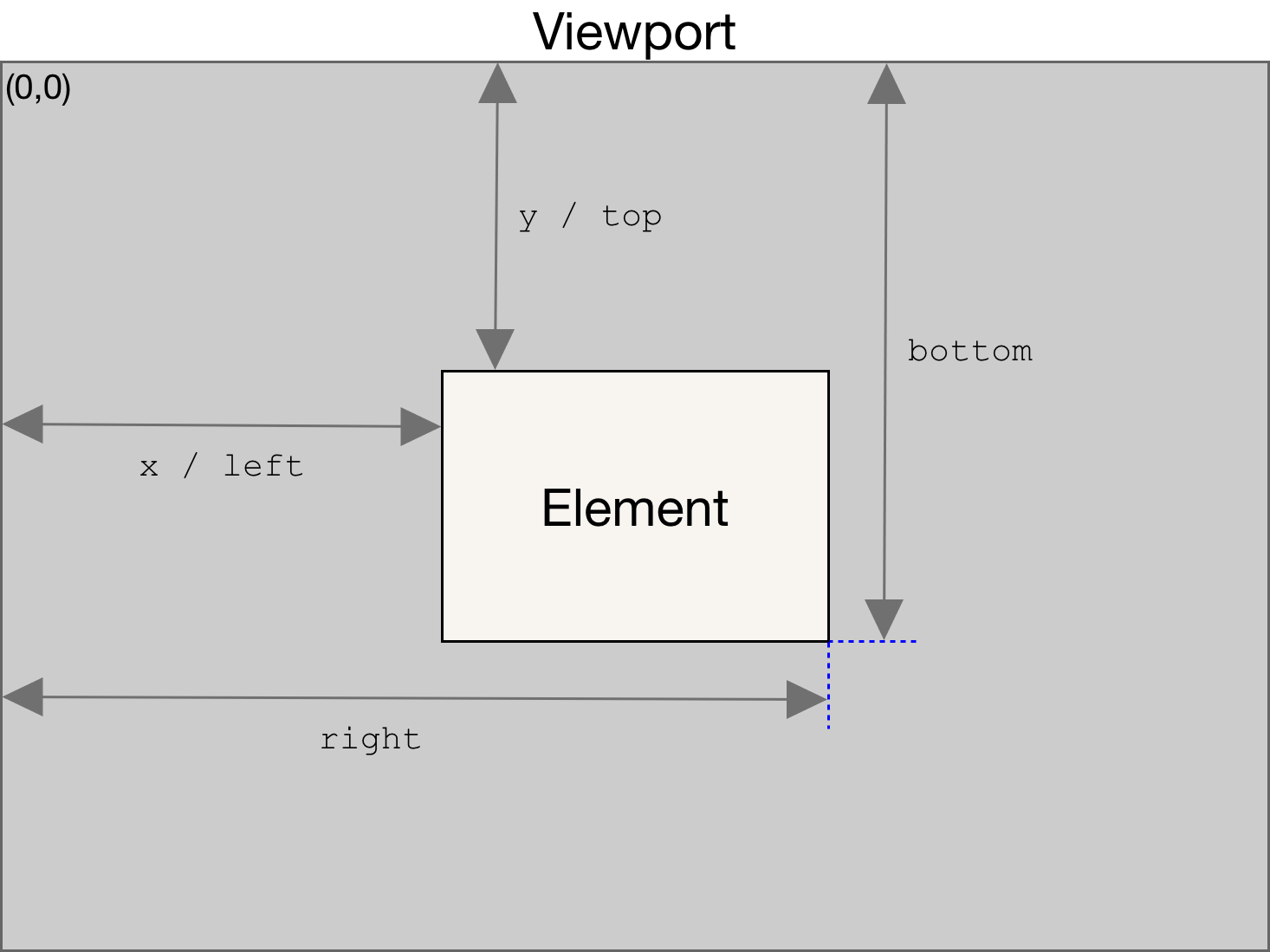
With these values, we could use them in isInViewport function to check if an element is visible in the viewport:
// returns true if the element is visible in viewport
function isInViewport(element) {
  const rect = element.getBoundingClientRect();
  return (
    rect.top >= 0 &&
    rect.left >= 0 &&
    rect.bottom <= (window.innerHeight || document.documentElement.clientHeight) &&
    rect.right <= (window.innerWidth || document.documentElement.clientWidth)
  );
}
Note that window.innerHeight and window.innerWidth give us the inner height and inner width of the window (window's content area).
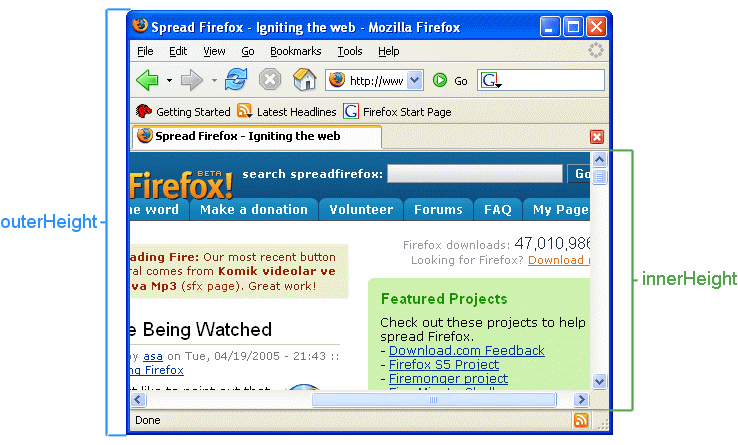
If window.innerHeight is undefined or zero, document.documentElement property will give us the html element, and clientWidth property will give us the inner height of the html element in pixels.
In react, we will need to use a ref to access DOM elements. All we need to do is to add a 'scroll' event listener to the element. When user scrolls, we will get the new bounding rectangle values to determine whether it is visible in viewport. With the help of rooks, we can use useDocumentEventListener hook to easily achieve this!
let's create an react example to check if an element is visible in viewport:
However, there are a few shortcomes using this method:
- We will need to consider the element's height and width. You may have noticed that in previous example, the state only changes when the red rectangle is completely inside the viewport, this is because we haven't count in the height and width of the rectangle.
.getBoundingClientRect()could cause layout thrashing if not used carefully.
As you may know, repaint and reflow are expensive in browsers, so browsers will try to batch those operations that cause repaint and reflow to optimize the performance. But in the example above, we use properties such as clientWidth and getBoundingClientRect, they could prevent browsers from optimizing repaints and reflows.
Why? As scroll events happen very fast, and the browser will have to provide the latest style information every time the scroll event happens, this will cause layout thrashing as browser is keep recalculatuing the latest bounding rect information! This is not good!
Another better way to check visibility in viewport is to use Intersection Observer which won't have these problems!
2. Using Intersection Observer
From MDN:
the Intersection Observer API provides a way to asynchronously observe changes in the intersection of a target element with an ancestor element or with a top-level document's viewport.
Basically, We can use it to check whether two elements are intersecting, the visibility of of two elements in relation to each other!
The two elements are called root and target, root must be ancestor of the target and it is default to viewport, target is usually the element that we want to watch on whether it's visible.
For example, we can use Intersection Observer to set the classList of an element to control its behaviour when it's visible:
// first select an element
const target = document.querySelector('.');

// define the callback being called when intersecting with 'viewport'
function handleIntersection(entries) {
  entries.map((entry) => {
    if (entry.isIntersecting) {
      entry.target.classList.add('visible')
    } else {
      entry.target.classList.remove('visible')
    }
  });
}

// instantiate an observer
let observer = new IntersectionObserver(handleIntersection);

// start watching for the target element
observer.observe(target);
To use it in react, again, we need to use ref in order to watch a dom element. We can put the observer in an useEffect hook, and disconnect it on unmount:
useEffect(() => {
  // Create an observer instance linked to the callback function
  if (rectRef.current) {
    const observer = new IntersectionObserver((entries, observerRef) => {
      entries.forEach(({ isIntersecting }) => setInView(isIntersecting));
    });

    // Start observing the target node for configured mutations
    observer.observe(rectRef.current);

    return () => {
      observer.disconnect();
    };
  }
}, [rectRef]);
The full code in a codesandbox:
Lastly, with useInViewRef hook, we don't even need to write that! it's much simpler!
Hope you find this blog and useInViewRef hook helpful! Let's use it next time when you encounter visibility problem!