

Personal Gmail + domain email setup (for Cloudflare + AWS SES)
Created by Qiwei on 3/9/2025 · Edited on 3/10/2025
So my goal was to send and receive emails using my personal gmail but with domain email address @buildin.fun. So I can do some email marketing and provide a contact or support email address for indie stuff.
I was using a cloudflare domain and AWS SES as SMTP provider, since I found there is no such guide online (that is complete and recent enough), I decided to post the steps here for anyone encounter this in futures.
Step 0
Get cloudflare domain ready, and AWS console ready.
Step 1: Enable Cloudflare email routing
In Cloudflare dashboard -> Email -> Email Routing -> Custom addresses -> Create address.
Use your personal gmail address here.
This allows you to receive email sent to the domain address, this is required because we need it later for verifications.
Step 2: AWS SES identities setup
Create a domain identity
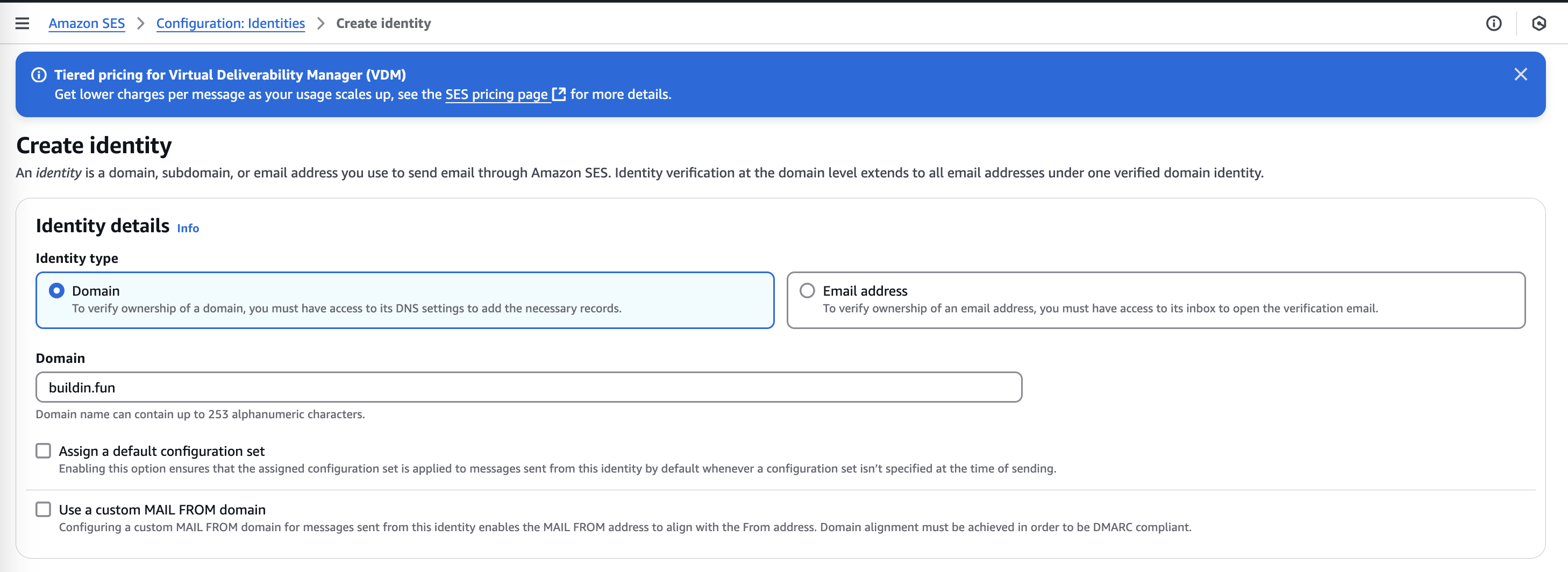
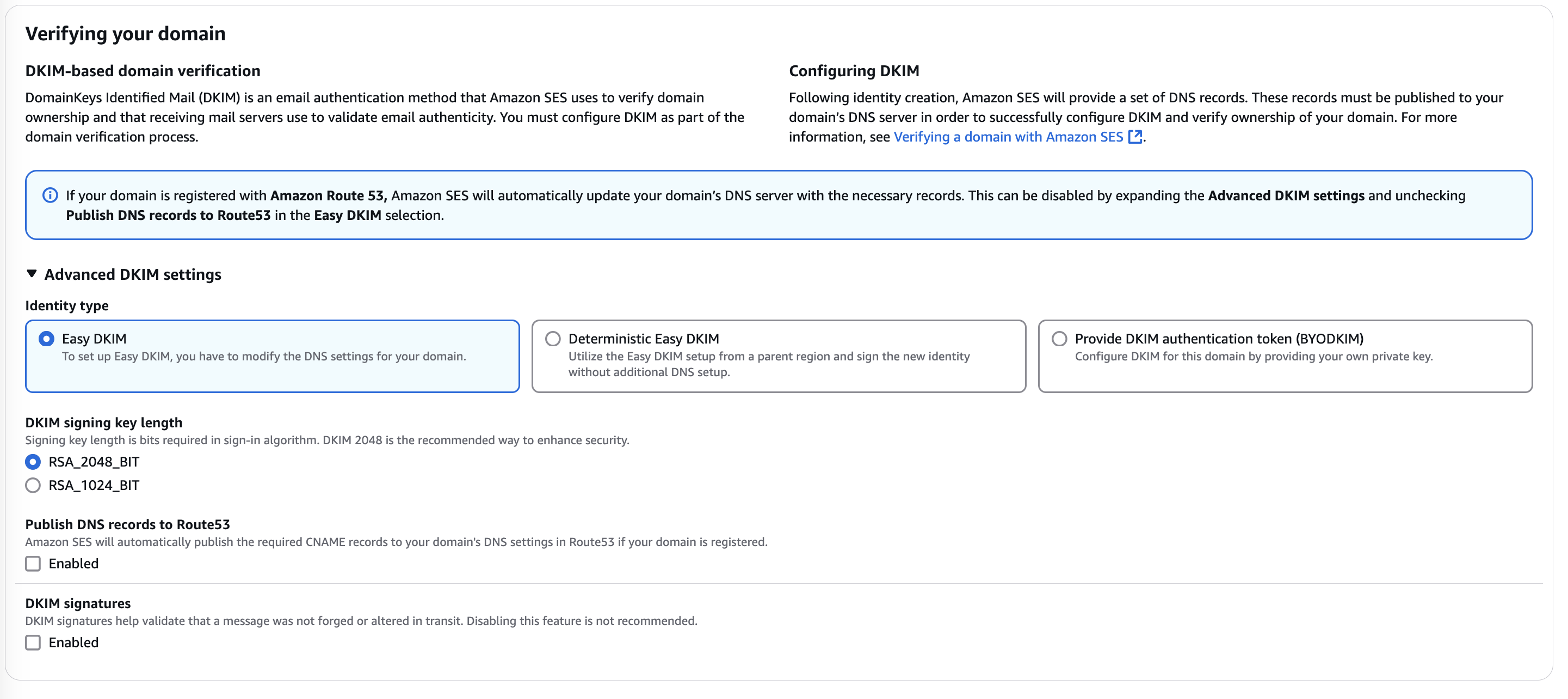
Add all CNAME records under the identity's DKIM -> Publish DNS records to Cloudflare DNS records.
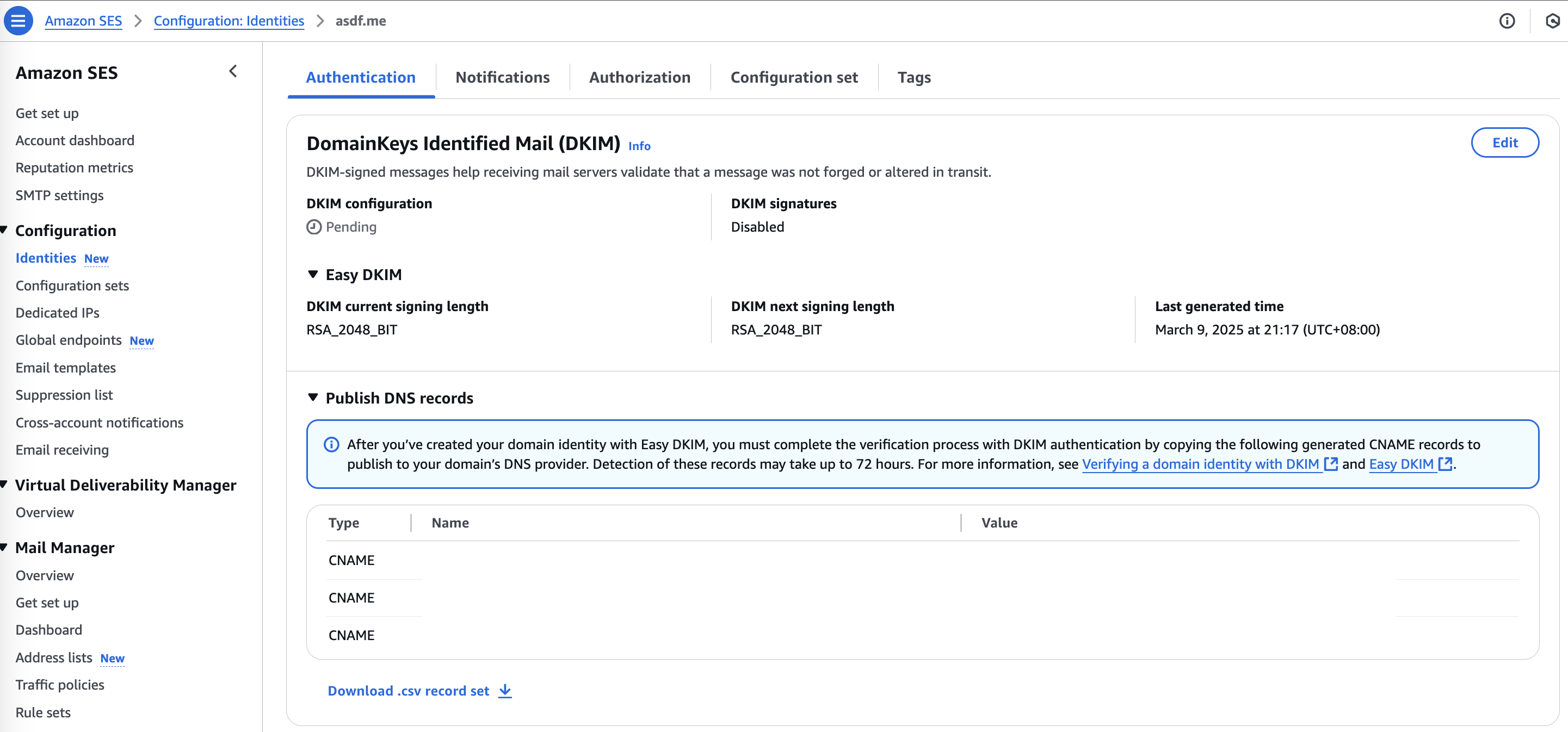
Repeat the same to Create an email identity, except the CNAME records are already added.
Wait for DKIM change to "Successful" (took a few minutes for me).
Click send test email, and check email to get verified.
Step 3: Edit custom MAIL FROM
For each of the identity created in previous step, follow AWS doc to edit Custom MAIL FROM domain. Make sure the MX and TXT records are added.
Notes:
- you only need one
MAIL FROM, add it to both identities - must use a subdomain, for example
main
Step 4: Create SMTP Credentials
In SES -> SMTP Settings, Create SMTP Credentials.
Change name to something related to domain email setup.
In username and password screen, take note of the SMTP username and password.
Step 5: Connect on Gmail
In your personal Gmail -> settings -> see all settings -> Accounts and Import -> Send mail as -> Add another email address.
Enter the SMTP username and password stored in previous step, they burn the note with these credentials.
SMTP server is SMTP endpoint you can find in SES SMTP settings. Port select one of STARTTLS Port, and choose TLS for connection.
Gmail will send an email to you domain email address, and you can get verified in that email.
Step 6: Test
Try send and receive some email to test it works!
Leave a comment if you encountered any issue.